
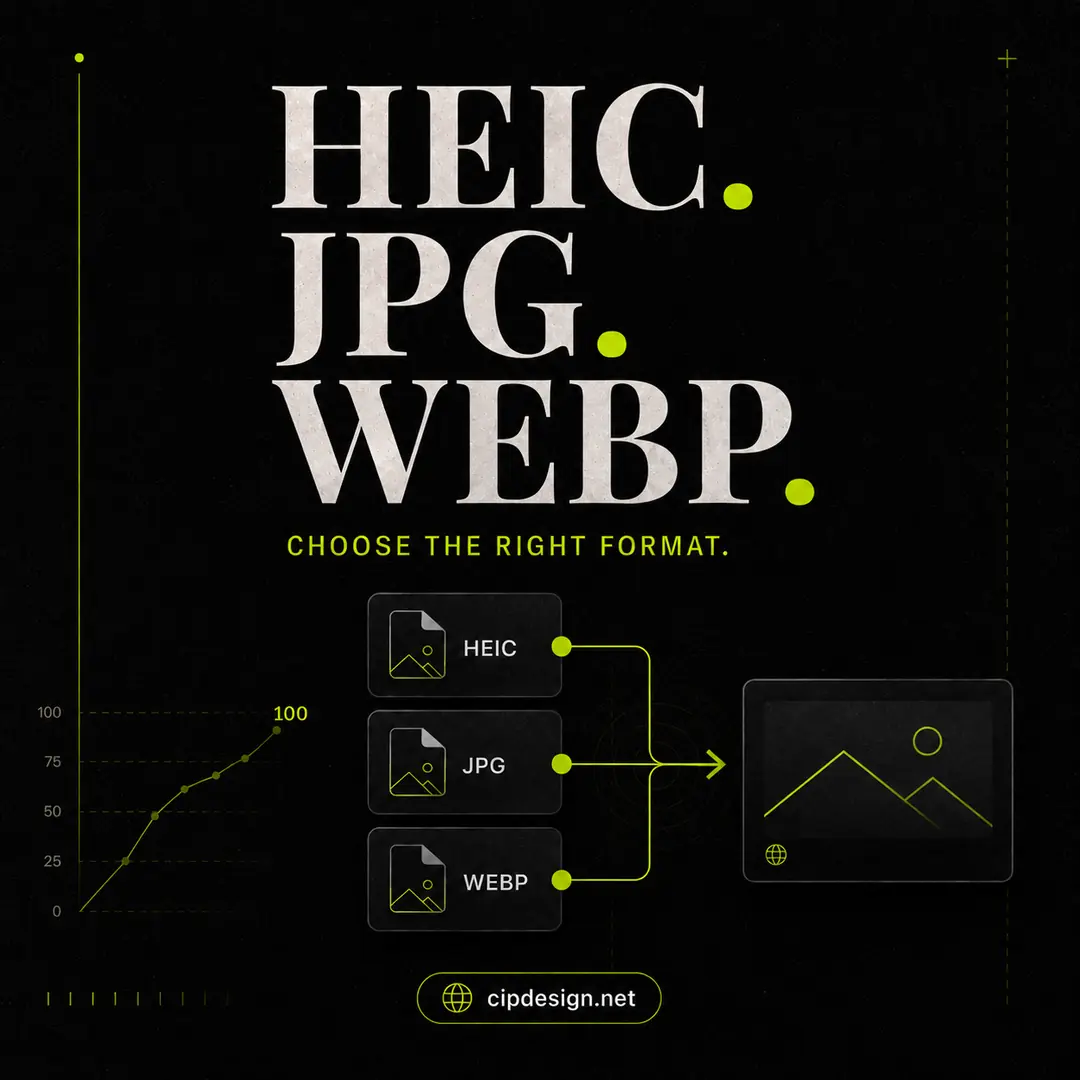
Modern image formats solve different problems. HEIC helps a phone store high-quality photographs efficiently. JPG is accepted almost everywhere. WebP is designed for efficient delivery on the web. Confusion begins when a file created for one environment is pushed into another.
HEIC: efficient capture, uneven compatibility
Apple devices commonly use HEIC or HEIF because the format can preserve good quality at a relatively small size. It is excellent for a photo library, but some older applications, website forms and client workflows still expect JPG or PNG.
When compatibility becomes the priority, use the free HEIC to JPG converter. It processes images in the browser, supports batches and can return JPG or PNG without sending the photographs to a server.
JPG: the compatibility default
JPG is a reliable choice for photographs that need to open across a wide range of software. It supports adjustable lossy compression, so smaller files trade away some detail. Repeated editing and saving can compound that loss, which is why you should retain the original source.
JPG does not support transparency and is usually a poor choice for logos, screenshots with sharp text or graphics with flat colour areas.
WebP: built for website delivery
WebP supports both lossy and lossless compression as well as transparency. For many website photographs it can reduce file size while maintaining comparable visible quality. Modern browsers support it broadly, making it a practical delivery format.
Convert prepared JPG or PNG files with the WebP converter. Choose quality by inspecting the preview rather than relying on a single setting for every image.
What about PNG?
PNG remains useful for transparency, screenshots, interface elements and graphics that need sharp edges. Photographic PNG files can be unnecessarily large. If transparency is not required, test WebP or JPG and compare the visual result.
Which format should you choose?
- For an iPhone photo archive: keep the original HEIC.
- For universal client compatibility: export a JPG copy.
- For most website photographs: resize and test WebP.
- For transparent graphics: use WebP, PNG or SVG depending on the source.
- For long-term editing: preserve the highest-quality original separately.
Privacy matters during conversion
Online image tools often upload files for server-side processing. That may be acceptable for an ordinary public image, but it is not ideal for unreleased products, contracts, identity documents or client assets. Cipdesign’s image utilities run locally in the browser, so the file remains on the device during conversion.
Format choice is only one part of web performance. Resize the output, compress it sensibly and use a descriptive filename. Then check the complete page with the website audit tool to see whether image weight is still a meaningful problem.